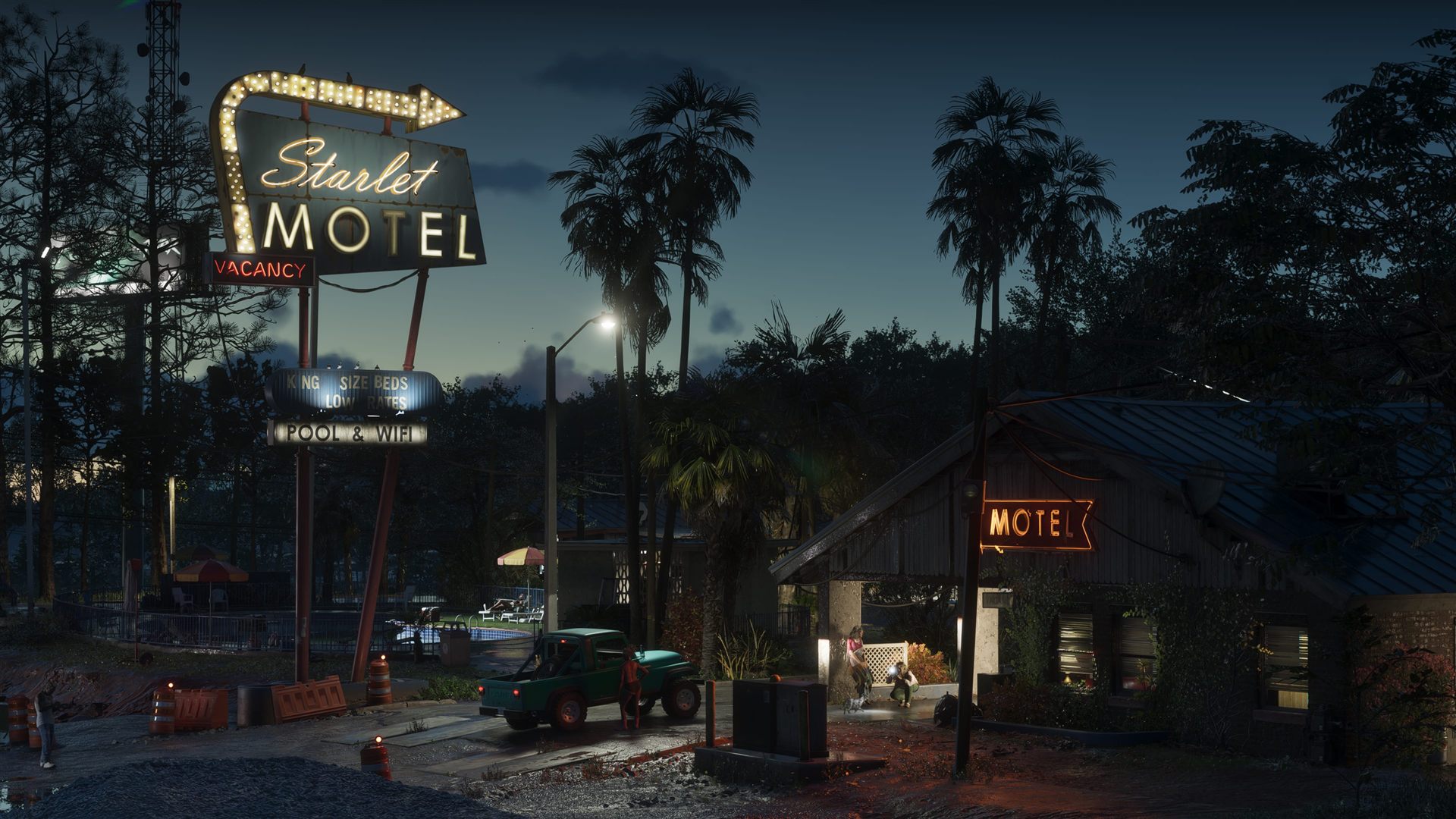
GTA 6 is out on PS5 and Xbox Series X|S, and the first hours in a new open world are the ones you remember. Ten minutes of setup before you start can make a real difference to how it looks and plays. Here's what to check.
1. Free up storage before the download
Check the game's listing on your console store for the current install size, then clear space before the download starts so it doesn't stall halfway.
Moving older games to external storage is quicker than deleting and re-downloading them later.
2. Install the system update
Update your console's firmware before launch day traffic peaks. It avoids being forced to update mid-download.
3. Turn on your TV's game mode
Game mode cuts input lag by skipping much of the TV's picture processing. On a 30 FPS game, every bit of responsiveness helps. Most TVs switch automatically when they detect a console (ALLM), but it's worth confirming.
4. Calibrate HDR
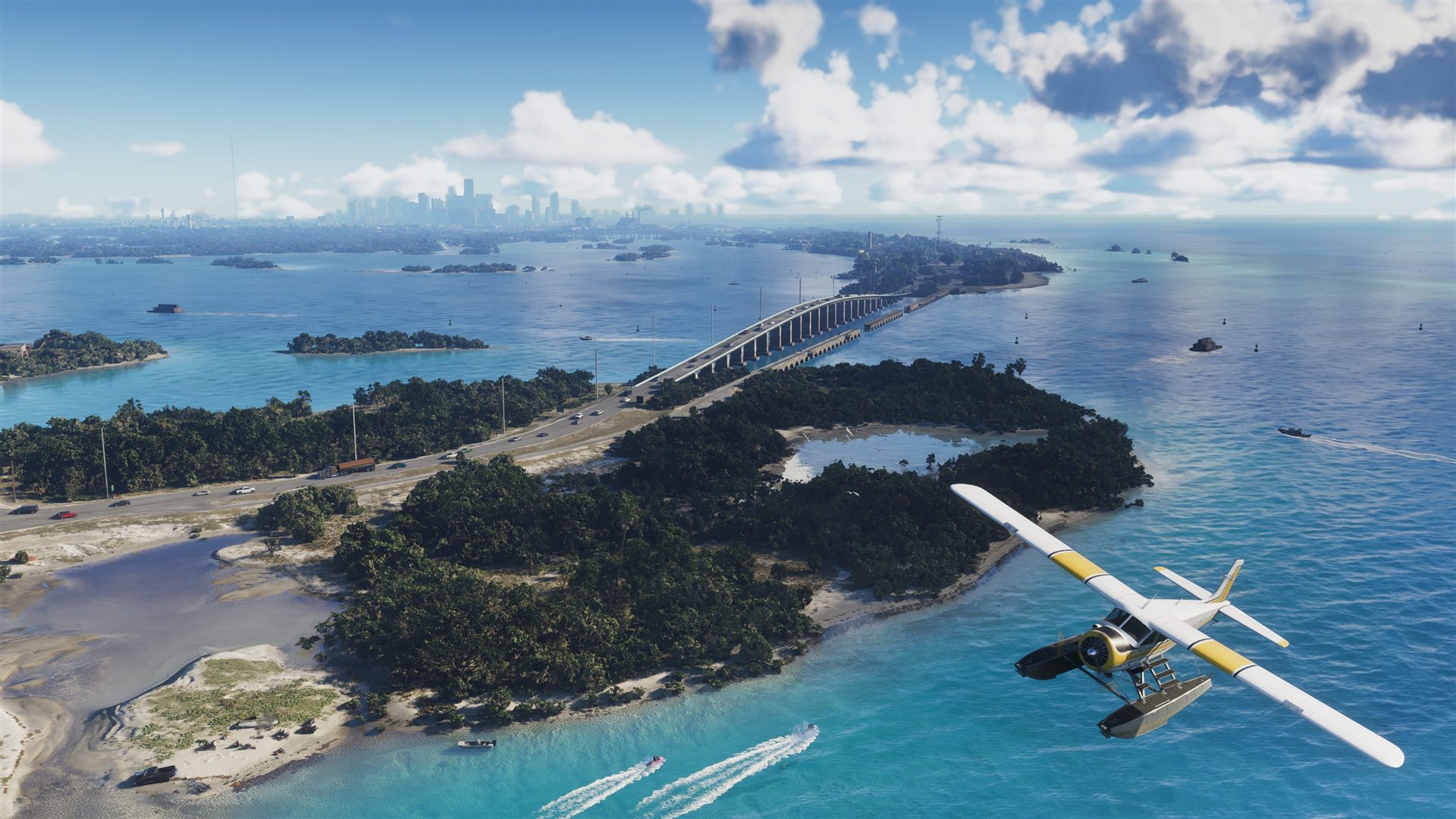
Run your console's built-in HDR calibration from its display settings. A correctly calibrated range keeps bright skies from clipping and dark interiors from crushing to black, which matters a lot in a game built around day-night lighting.
5. Turn off motion smoothing
6. Set expectations for 30 FPS
Every console version targets 30 FPS, including the PS5 Pro. Higher-refresh TV modes won't raise the frame rate. Our 30 FPS breakdown explains what the PS5 Pro does add.
FAQ
Will a 120Hz TV make GTA 6 smoother?
Not directly. The game targets 30 FPS on every console, so a higher refresh rate doesn't add frames.
Should I use my TV's motion smoothing to make 30 FPS feel smoother?
It's best avoided for games. It adds input lag and artifacts that are especially noticeable during fast camera movement.